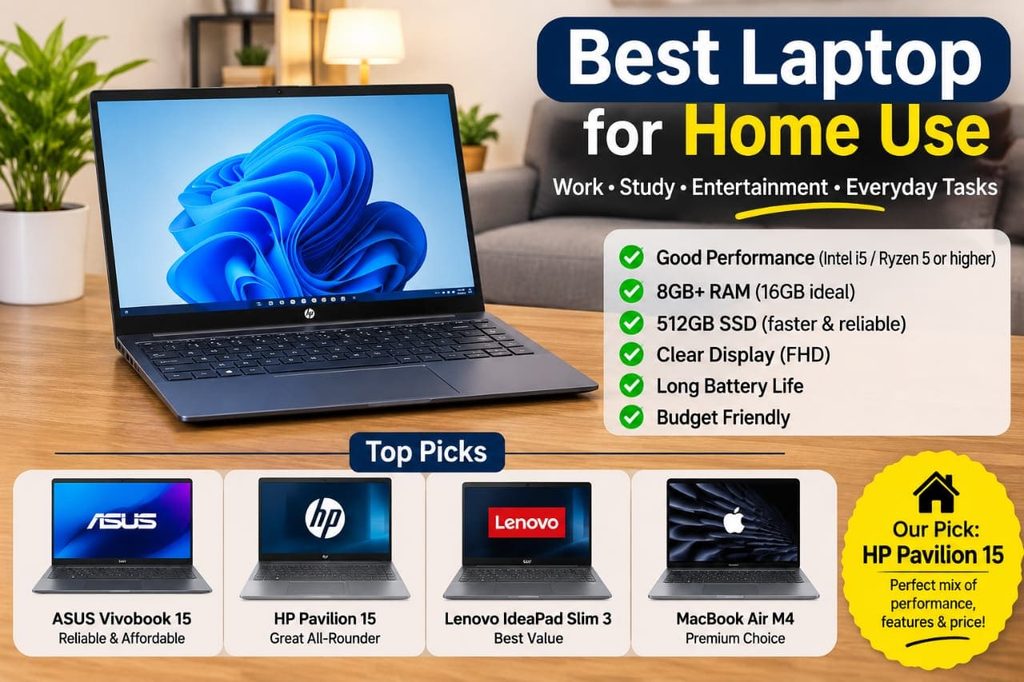
The best laptop for home use in 2026 is the one that balances performance, battery life, screen quality, and price for your everyday needs. For most people, a laptop with 16GB of RAM, a 512GB SSD, a comfortable 14- to 16-inch display, and a recent processor offers a strong starting point.The right choice depends on how you use your computer. A family laptop for web browsing and video calls has different needs from a machine used for remote work, photo editing, gaming, or school assignments.
This guide compares leading laptop options for home use, explains which specifications matter most, and shows how much you should spend. It also covers Windows, macOS, and Chromebook options so you can choose a laptop that fits your household rather than paying for features you may never use. Discover the best student laptops in 2026 for studying, multitasking, and everyday college needs.
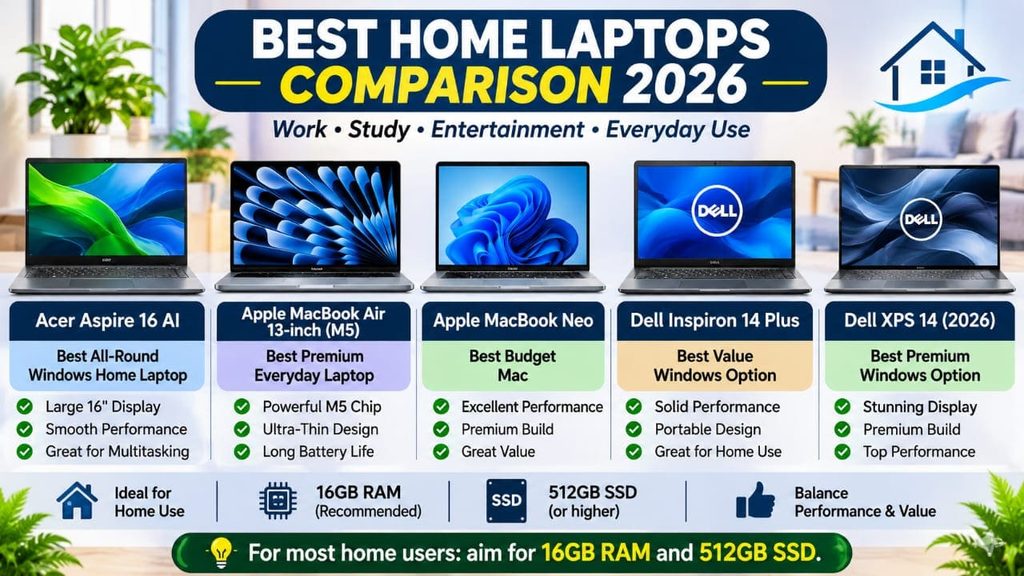
Quick Comparison: Best Laptops for Home Use in 2026
The following models are worth considering for different household needs. Exact configurations, prices, and availability vary, so compare the specifications of the version you plan to buy rather than relying on the model name alone.
| Laptop | Best for | Main advantage | What to consider |
| Apple MacBook Air | Everyday use and remote work | Lightweight design and long battery life | Higher starting cost than many budget Windows laptops |
| Dell XPS 13 | Premium home computing | Compact design and high-quality display options | Configuration and upgrade costs |
| HP Pavilion | General household use | Broad range of mainstream configurations | Features vary significantly by model |
| Lenovo IdeaPad | Budget-conscious buyers | Options across several price levels | Entry-level versions may have limited memory or storage |
| ASUS Zenbook 14 | Work, study, and portability | Portable design with productivity-focused hardware | Ports, screen options, and memory depend on configuration |
| Acer Aspire 5 | Everyday Windows computing | Practical features at accessible price points | Build quality and display quality vary by generation |
| Acer Chromebook Plus | Web browsing and online tasks | ChromeOS and straightforward everyday computing | Windows and macOS applications may not be available |
Our general recommendation: Start with a MacBook Air if you prefer macOS and want a portable everyday laptop. If you need Windows, compare current Lenovo IdeaPad, HP Pavilion, ASUS Zenbook, and Dell models at the same price. For web-based tasks on a tighter budget, consider a Chromebook.These are category-based recommendations, not the results of hands-on testing. Confirm the current model generation, exact specifications, and price before publishing a product ranking.
Apple MacBook Air: Best Overall Laptop for Home Use
The Apple MacBook Air M5 is a strong all-around choice for people who want a portable laptop for everyday tasks, home office work, entertainment, and personal projects. Its combination of Apple silicon, a lightweight design, and a fanless cooling system makes it appealing for a wide range of household uses.
Best for: Web browsing, remote work, video calls, writing, streaming, and light photo editing.
Why consider it: The MacBook Air offers strong everyday performance without the size or weight of many performance-focused laptops. Its macOS operating system also works well with other Apple devices, including iPhones and iPads.Potential drawbacks: It costs more than many entry-level Windows laptops. Some applications are available only on Windows, and memory or storage upgrades may increase the purchase price.
What to buy: Look for a current-generation configuration with at least 16GB of unified memory and 512GB of storage if your budget allows. Unified memory is the shared working memory used by the processor and graphics hardware.
The MacBook Air is especially suitable for households that want one computer for several years. However, check whether your essential applications and accessories support macOS before switching from Windows.
Dell XPS 13: Best Compact Windows Laptop
The Dell XPS 13 (2026) is a compelling option if you prefer Windows but want a small, premium laptop. Its compact design makes it practical for working at a kitchen table, using a desk in a small room, or moving between different parts of your home.
Best for: Windows users, remote workers, students, and people who value portability.
Why consider it: The 2026 model has been highlighted by laptop reviewers for its compact construction, high-resolution display options, and everyday productivity performance. Tom’s Guide reported a starting price of around $699 for this generation, although prices and configurations can change.
Potential drawbacks: The entry-level configuration may have less memory than you want for heavy multitasking. Its limited port selection can also mean using an adapter or USB-C hub for certain accessories.
What to buy: Compare the 16GB RAM configuration against the base model. If you regularly use many browser tabs, video meetings, and office applications together, additional memory can make the laptop more comfortable to use over time.
HP Pavilion: Best for General Family Computing
The HP Pavilion range is worth considering for households that need a conventional Windows computer without paying for a premium ultrabook. Depending on the specific model, you can find different screen sizes, processors, memory capacities, and storage options.
Best for: Family use, homework, web browsing, office documents, and video calls.
Why consider it: A mainstream laptop can handle everyday household tasks without requiring expensive gaming or workstation hardware. Windows also supports a broad range of common desktop applications and peripherals.
Potential drawbacks: Pavilion specifications differ substantially between generations and configurations. A low-cost version may have a dim screen, limited memory, a small SSD, or a less capable processor.
What to buy: Prioritize 16GB of RAM, a 512GB SSD, a Full HD or better display, and a recent processor from a reputable product line. If several family members will share the computer, check that it has enough ports for your existing accessories.
Don’t purchase a Pavilion based on the product name alone. Compare the complete model number and specification sheet because two similarly named laptops can offer very different experiences.
Lenovo IdeaPad: Best for Budget-Conscious Buyers
A Lenovo IdeaPad is a practical starting point if you want a laptop for ordinary home computing at a lower price. The range includes entry-level machines as well as more capable models, so you can choose a configuration that matches your budget.
Best for: Everyday browsing, online shopping, email, homework, and office tasks.
Why consider it: IdeaPad models cover a broad range of prices and sizes. Some configurations provide enough performance for daily multitasking without the added cost of premium materials or high-end graphics.
Potential drawbacks: Budget models can make compromises in screen brightness, keyboard quality, memory, and battery life. Some laptops also have memory that cannot be upgraded later.
What to buy: Aim for 16GB RAM and a 512GB SSD if possible. If you are choosing a lower-priced configuration, make sure its memory is sufficient for your planned applications and check whether future upgrades are possible.
An IdeaPad is often a sensible choice when the laptop will stay on a desk most of the time. Spending less on portability and premium finishes can leave more room in your budget for a larger monitor, a comfortable keyboard, or a backup drive.
ASUS Zenbook 14: Best for Work and Everyday Multitasking
The ASUS Zenbook 14 is designed for buyers who want a portable laptop with a more premium feel. Depending on the configuration, it can be suitable for remote work, study, productivity applications, and entertainment.
Best for: Professionals working from home, frequent video callers, and people who carry their laptops between rooms.
Why consider it: Zenbook models often emphasize portability, display quality, and a compact design. A suitable configuration can provide enough processing power for office software, browser-based tools, and moderate creative work.
Potential drawbacks: The exact processor platform, memory, screen, and available ports vary by model. Some configurations may use an ARM-based processor, which can have different application and peripheral compatibility from traditional x86 Windows laptops.
What to buy: Check the processor type, webcam quality, display resolution, port selection, and whether your work software supports the operating system and processor architecture.
A Zenbook can be a good middle ground between a basic budget laptop and a high-priced premium model. Compare it directly with the Dell XPS 13 and similarly priced Lenovo laptops before deciding.
Acer Aspire 5: Best for Everyday Windows Tasks
The Acer Aspire family is another option for people who want a straightforward Windows laptop for daily use. Depending on the generation and regional availability, Aspire models may offer a range of processors, screen sizes, and storage configurations.
Best for: Email, browsing, streaming, documents, and general household administration.
Why consider it: A sensibly configured mainstream laptop can deliver everything many households need without paying for a premium display or powerful graphics hardware.
Potential drawbacks: Not every Aspire model has the same build quality or screen. The least expensive configuration may feel less responsive when multiple applications are open.
What to buy: Look beyond the advertised processor name. Check the amount of RAM, SSD capacity, display resolution, battery specifications, warranty, and return policy.
For basic household tasks, a well-priced Aspire with adequate memory can be a better purchase than an expensive laptop whose extra performance you won’t use.
Acer Chromebook Plus: Best for Browser-Based Home Use
A Chromebook Plus is worth considering if most of your computing takes place in a web browser. It runs ChromeOS rather than Windows or macOS, making it a different type of laptop with its own application compatibility and maintenance considerations.
Best for: Web browsing, webmail, online classes, streaming, and browser-based office work.
Why consider it: Chromebook Plus devices have defined hardware requirements intended to provide a stronger experience than the most basic Chromebook configurations. Google lists requirements that include at least 8GB of RAM, 128GB of storage, and a Full HD IPS display or better.
Potential drawbacks: A Chromebook may not run Windows-only desktop software. Specialized business applications, certain peripherals, and some games may not work as expected.
What to buy: Choose a Chromebook Plus if your essential applications work in ChromeOS and your files are accessible through compatible online services. Check offline support if you need to work without an internet connection.
A Chromebook can be an affordable home computer, but it is not automatically the right choice for someone who depends on Windows programs.
Which Laptop Should You Choose?
The best laptop depends on the tasks you perform most often, not the number of features listed on its product page.
| Your main use | Best starting point | Recommended specification |
| Everyday home computing | Lenovo IdeaPad or HP Pavilion | 16GB RAM, 512GB SSD |
| Remote work and multitasking | MacBook Air, Dell XPS 13, or ASUS Zenbook | 16GB RAM or more |
| Family browsing and online classes | Mainstream Windows laptop or Chromebook Plus | 8–16GB RAM, depending on workload |
| Watching movies and shows | Laptop with a quality 15- or 16-inch display | Full HD or better |
| Photo editing | MacBook Air or a capable Windows laptop | 16GB RAM or more; larger SSD |
| Gaming | Dedicated gaming laptop | Compatible dedicated GPU, adequate cooling, and sufficient memory |
| Windows-specific applications | Windows laptop | Verify application and peripheral compatibility |
If you are buying one laptop for several family members, prioritize reliability, adequate memory, a comfortable keyboard, and enough storage. These features tend to matter more in everyday use than premium extras.
How Much Should You Spend on a Home Laptop?
Your budget should reflect the work you need the laptop to do. Prices fluctuate with sales, processor generations, memory costs, and configuration changes, so use the following ranges as broad shopping targets rather than guaranteed current prices.
| Budget in US dollars | What to expect | Who should consider it |
| Under $400 | Basic Chromebook or entry-level Windows laptop, often with compromises | Light browsing and simple tasks |
| 400–700 | More capable budget systems and selected value models | Families, students, and everyday users |
| 700–1,000 | Better-equipped mainstream and some premium compact laptops | Remote workers and frequent multitaskers |
| 1,000–1,500 | Premium laptops with stronger overall specifications | Professionals and demanding everyday users |
| Above $1,500 | High-end systems and specialist machines | Advanced creative work, gaming, and specialized workloads |
You don’t need to spend $1,000 to check email, attend video calls, browse websites, and watch streaming services. A carefully selected budget laptop can handle these tasks.However, avoid choosing a machine based only on its lowest advertised price. A slightly more expensive model with enough RAM, a larger SSD, a better display, and a stronger warranty may offer better long-term value.
What Specifications Matter Most for a Home Laptop?
Before buying, compare the components that affect everyday performance. A laptop with sensible specifications often provides a better experience than one with an impressive marketing label but too little memory or storage.
RAM: Aim for 16GB
RAM is the short-term working memory your laptop uses while applications run. More RAM helps when you keep multiple browser tabs, spreadsheets, video calls, and other programs open.
- 8GB: Suitable for light browsing and basic tasks, especially on a well-optimized system.
- 16GB: A good target for most home users in 2026.
- 32GB or more: Worth considering for demanding creative work, virtual machines, and heavier multitasking.
Check whether the RAM is upgradeable. Many thin laptops have memory permanently attached to the motherboard, making later upgrades impossible.
Storage: Choose an SSD
An SSD, or solid-state drive, stores your files and operating system. It generally provides faster startup and application loading than a traditional mechanical hard drive.
- 256GB: Suitable for lighter use when most files are stored online.
- 512GB: A practical starting point for most households.
- 1TB or more: Useful for large photo collections, video files, games, and extensive offline storage.
You can add external storage later, but it is more convenient to have enough internal space from the beginning. For a closer look at storage technology, link to your guide on what an SSD does.
Processor: Choose a Recent, Capable Model
The processor, also called the CPU, handles instructions and calculations. For web browsing, documents, and video calls, a modern entry-level or midrange processor is usually sufficient.Compare the exact processor model instead of relying on labels such as Core i5, Ryzen 5, or AI PC. These names cover different generations and performance levels.If you plan to use specialized software, check its recommended processor and operating-system requirements before buying.
Display: Consider Screen Size and Comfort
A 13- or 14-inch laptop is convenient if you move around the house. A 15- or 16-inch display offers more space for spreadsheets, documents, and entertainment.Look for a Full HD resolution or better for a conventional laptop. If you work near a window, pay attention to screen brightness and reflections. A high-resolution display is useful, but it should not come at the expense of a comfortable keyboard or sufficient memory.
Battery Life, Webcam, and Ports
Even if your laptop stays at home, battery life matters when you move between rooms or experience a power interruption. Manufacturer estimates are useful for comparison, but actual results depend on brightness, applications, and workload.For remote work, look for a decent webcam, clear microphones, and reliable WiFi. Check the ports, too: USB-A, USB-C, HDMI, and a headphone jack can reduce the need for adapters, although availability varies by model.
Windows vs. MacBook vs. Chromebook: Which Is Better?
Windows laptops
Windows is a strong choice if you need broad software compatibility, Microsoft Office desktop applications, or specialized programs. It also gives you the widest range of laptop designs and price points.
MacBooks
MacBooks suit people who prefer macOS, value portability, and use Apple devices. Before switching, verify that your work applications, games, and accessories support macOS.
Chromebooks
Chromebooks are useful for web-based work, online learning, email, and streaming. Choose one only after confirming that your essential applications work with ChromeOS.
There is no universally best operating system. Choose the one that supports the software you already use and the way you manage your files.
How to Choose the Right Laptop for Your Household?
Use this checklist before placing an order.
- List your main tasks. Identify whether you mainly browse the web, work remotely, edit photos, play games, or attend online classes.
- Set a realistic budget. Include the cost of any necessary accessories, software, and extended warranty.
- Check the complete specifications. Compare RAM, SSD capacity, processor model, display quality, and ports.
- Confirm software compatibility. Verify that your essential programs and devices work with the operating system.
- Read independent reviews. Look for real battery tests, performance results, keyboard feedback, and screen measurements.
- Check the return policy and warranty. Confirm the coverage, return window, and seller reputation before purchasing.
If you’re upgrading an older computer rather than buying a replacement, first check whether a storage or memory upgrade would meet your needs. Your existing laptop may have enough performance for everyday tasks with a relatively small improvement.
How We Evaluated These Recommendations?
This guide uses current product-category information and published laptop reviews to help readers compare their options. It does not claim that the author personally tested every laptop listed.Before publication, the editorial team should verify the exact 2026 configurations, US prices, warranty terms, availability, and relevant manufacturer specifications. A final hands-on review should also assess keyboard comfort, display quality, everyday performance, webcam quality, and battery life under a consistent test routine.
Frequently Asked Questions
What is the best laptop for home use for most people?
The Apple MacBook Air is a strong option for people who prefer macOS, while the Dell XPS 13 and well-equipped mainstream Windows laptops suit Windows users. The best choice depends on your budget, software requirements, and preferred operating system.
Is 8GB RAM enough for a home laptop?
Yes, 8GB can handle basic browsing, email, and light office work. However, 16GB is a better target if you regularly multitask or want more room for future software demands.
Is a laptop better than a desktop computer for home use?
A laptop is better if you need portability, a built-in screen, and a keyboard in one device. A desktop can offer better upgrade options and performance for the money, but it requires separate peripherals and a dedicated workspace.
How long should a home laptop last?
A laptop can remain useful for several years, but its lifespan depends on hardware quality, battery condition, maintenance, and software support. Check the manufacturer’s support policy and operating-system requirements rather than assuming every laptop will receive updates for the same length of time.
Should I buy a touchscreen laptop for home use?
A touchscreen is useful for drawing, handwritten notes, and direct interaction with compatible applications. If you mainly type documents, browse websites, and watch videos, a standard display may provide better value.
Final Thoughts
For most households, the best laptop for home use is a well-configured machine with a comfortable display, a modern processor, 16GB of RAM, and a 512GB SSD. Start with the MacBook Air if you prefer macOS, compare the Dell XPS 13 and mainstream Windows alternatives if you need Windows, or consider a Chromebook Plus for browser-based tasks.