SSD vs HDD: SSD is better than an HDD for most computers because it loads Windows, opens applications, and launches games much faster. An HDD is still useful if you need inexpensive storage for large files, backups, photos, and videos.The main difference is how each drive stores data: an SSD uses flash memory with no moving parts, while an HDD uses spinning magnetic disks. This guide compares speed, lifespan, gaming performance, reliability, and price to help you decide which storage option makes sense for your PC or laptop.
Is SSD Better Than HDD?
Yes, an SSD is generally better than an HDD for everyday computing, gaming, and running applications. It offers faster data access, quieter operation, and better resistance to physical shock because it has no spinning platters or moving read/write heads.However, an HDD can be the better choice when storage capacity and cost per gigabyte matter more than speed. Many desktop users get the best balance by installing Windows and frequently used programs on an SSD while keeping large files on a separate HDD.
Here is the quick comparison:
| Feature | SSD | HDD |
| Speed | Much faster overall | Slower, especially for random access |
| Windows startup | Usually much quicker | Usually slower |
| Gaming | Faster loading in many games | Longer loading in many games |
| Moving parts | None | Spinning platters and moving heads |
| Noise | Silent | May produce audible noise |
| Shock resistance | Generally better | More vulnerable to physical shock |
| Cost per GB | Usually higher | Usually lower |
| Large-capacity storage | Available, but often expensive | Often more economical |
| Best use | Operating system, apps, games | Archives, backups, large media libraries |
An SSD does not automatically improve every part of a computer. For example, it will not directly increase your graphics card’s rendering power, and it cannot compensate for every CPU or RAM limitation.
What Is the Difference Between SSD and HDD?
The difference comes down to how the drives store and retrieve information.
What is an SSD?
An SSD, or solid-state drive, stores data in flash memory chips. It has no spinning disks, so it can access information without waiting for a mechanical component to move into position.SSDs come in several forms, including 2.5-inch SATA drives and M.2 drives. An M.2 drive may use the SATA interface or the faster PCIe/NVMe interface, depending on its design.
Solid State Drives | Doctor Memory
Common reasons to choose an SSD include:
- Faster boot times and application launches.
- Shorter loading screens in many games.
- Quiet operation with no mechanical drive noise.
- Better resistance to physical movement and shock.
- Responsive performance when opening many small files.
What is an HDD?
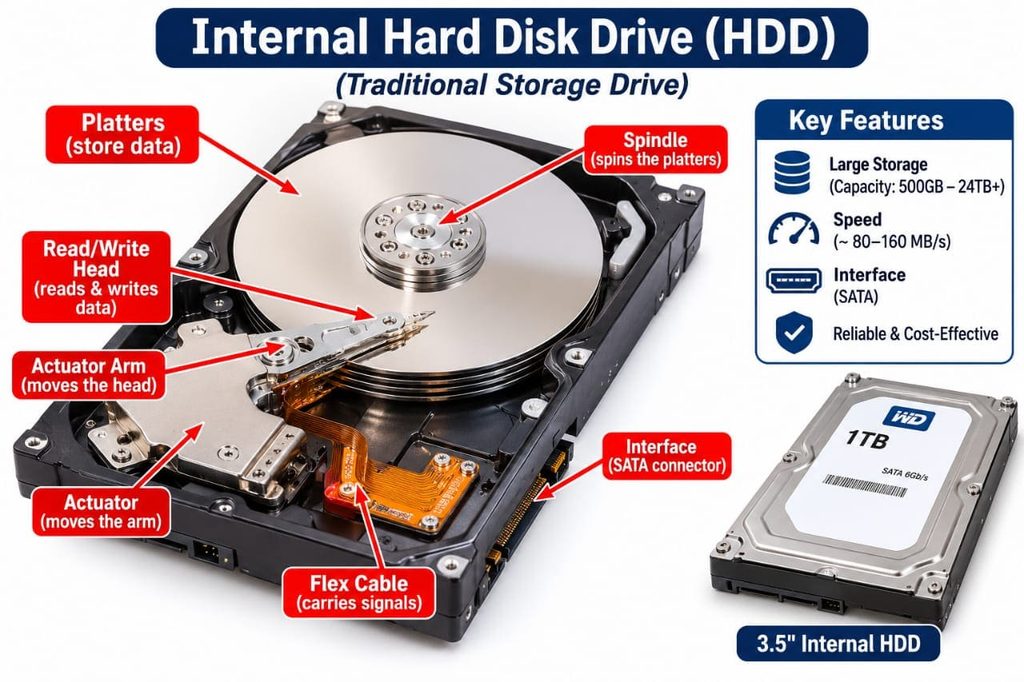
An HDD, or hard disk drive, stores data magnetically on rotating platters. A mechanical read/write head moves over the platters to retrieve or save information.
Because the drive must physically locate data, it generally takes longer to access scattered files. This limitation is particularly noticeable when Windows or an application needs to read many small files from different locations.
ST2000DM008 SEAGATE, BarraCuda® 3.5″ Desktop Hard Drive, 2TB | Farnell® UK
HDDs remain useful for:
- Storing large collections of videos, photos, and documents.
- Keeping older games that you rarely play.
- Maintaining local backups and archives.
- Expanding desktop storage on a limited budget.
The key takeaway: An SSD prioritizes speed and responsiveness, while an HDD prioritizes affordable storage capacity.
Are SSDs Faster Than HDDs?
Yes, SSDs are significantly faster than HDDs in most everyday workloads, especially when opening applications, booting Windows, or accessing many small files. The exact difference depends on the drive model, interface, computer hardware, and type of task.
How much faster is an SSD than an HDD?
Typical consumer drive speeds provide a useful starting point. These are approximate ranges, not guaranteed results for every drive.
| Drive type | Approximate sequential read speed |
| 7,200 RPM HDD | 100–200 MB/s |
| SATA SSD | Up to about 550 MB/s |
| PCIe 3.0 NVMe SSD | Around 2,000–3,500 MB/s |
| PCIe 4.0 NVMe SSD | Around 5,000–7,500 MB/s |
Actual performance varies by model, workload, drive capacity, and system configuration. Advertised maximum speeds are not the same as real-world application performance.
A SATA SSD can deliver several times the sequential transfer speed of a typical desktop HDD. Modern NVMe SSDs can be faster still, particularly when transferring large files or handling demanding workloads.Random access is another major advantage. Windows frequently reads many small files while starting the system or launching applications. SSDs can handle these requests without waiting for a mechanical head to move across a disk.
Does the type of SSD matter?
Yes. Not every SSD offers the same performance.
- SATA SSD: A good choice for upgrading an older computer that supports 2.5-inch SATA drives.
- M.2 SATA SSD: Uses the M.2 form factor but relies on SATA, so its speed is similar to that of a conventional SATA SSD.
- M.2 NVMe SSD: Uses PCIe and NVMe to deliver much higher transfer speeds on compatible systems.
An NVMe drive is not automatically the best upgrade for every PC. Your motherboard or laptop must support the drive’s interface and physical size, and some systems have specific capacity or compatibility limitations.If you are upgrading your computer, see our related guide, how to install an M.2 NVMe SSD, for the installation process.
SSD vs HDD for Gaming: Which Is Better?
An SSD is the better choice for most gaming PCs because games generally launch faster and levels load more quickly when stored on solid-state storage. The improvement is particularly noticeable in large games that regularly load textures, maps, and other assets.Intel’s gaming guidance also explains that SSDs can reduce storage-related hitching in games that stream assets as you move through the world. However, the benefits depend on the game and the rest of your system. Best student laptops in 2026 for studying, performance, and affordability.
What improves when you play games on an SSD?
- Game startup: You generally spend less time waiting for a game to launch.
- Loading screens: Levels, saved games, and fast-travel locations may load sooner.
- Open-world streaming: Some games can retrieve textures and other assets more quickly, reducing storage-related pauses.
- System responsiveness: Switching between a game, launcher, browser, and other applications can feel faster.
An SSD does not guarantee higher frame rates. Frames per second (FPS) depend mainly on the GPU, CPU, memory, game settings, and software. Moving a game from an HDD to an SSD might reduce stuttering caused by slow asset loading, but it will not fix every performance problem.
Do you need an NVMe SSD for gaming?
No. A SATA SSD is already a major improvement over an HDD for many games. An NVMe SSD can offer higher transfer speeds, but the difference between SATA and NVMe is often less noticeable in ordinary game loading than the difference between either SSD and a mechanical drive.
Some newer games and technologies can benefit from faster storage. Microsoft’s DirectStorage technology is designed to let supported games take advantage of high-speed storage, including NVMe SSDs. Its benefits depend on game implementation and compatible hardware.
Which storage setup is best for a gaming PC?
Best for most gaming PCs: SSD only
Choose a 1TB or larger SSD if your budget allows and you want your operating system and frequently played games on fast storage.
Best for a large game library: SSD + HDD
Install Windows and your favorite games on the SSD. Use the HDD for older games, recordings, and other files that do not need fast access.
Best for a tight budget: HDD, temporarily
An HDD can still store and run many games, but you will generally wait longer for loading. If possible, prioritize adding an SSD for Windows first.
For a new gaming build, an SSD is the sensible default. If your budget is limited, a smaller SSD for Windows and a few games can make more practical sense than relying entirely on an HDD.
Do SSDs Last Longer Than HDDs?
An SSD can last longer than an HDD in many everyday computing situations, but neither type is guaranteed to outlast the other. The result depends on the specific drive, workload, operating conditions, and physical handling.SSDs have no moving parts, so they avoid mechanical failures associated with spinning platters and moving heads. Their flash memory cells do, however, have finite write endurance.
What affects SSD lifespan?
SSD manufacturers often publish a terabytes written (TBW) rating. It estimates how much data can be written to the drive within its specified endurance rating.
For example, a drive rated for 300 TBW has a rated write endurance of 300 terabytes. That does not mean it will fail immediately after reaching that amount; it is a specification to consider alongside the warranty and other drive-health indicators.
An SSD’s lifespan is influenced by:
- How much data you write over time.
- Drive capacity and flash-memory design.
- Temperature and cooling.
- Firmware, controller design, and workload.
- The manufacturer’s endurance rating and warranty.
For most everyday users, normal browsing, office work, schoolwork, and gaming are unlikely to exhaust a suitable modern SSD quickly.
What affects HDD lifespan?
An HDD relies on mechanical parts that can wear or fail. Repeated operation, vibration, impact, temperature, and other environmental conditions can affect its reliability.A desktop HDD may operate reliably for years, but a sudden mechanical failure can make its data inaccessible. An SSD can also fail suddenly because of electronic, controller, or other component problems, even if its flash memory has not reached its rated endurance.The practical advice: Check your drive’s health information when available, watch for warning signs, and maintain separate backups of important files. Neither SSD nor HDD technology replaces a backup strategy.
SSD vs HDD: Which Is More Reliable?
For a laptop or a computer that is moved frequently, an SSD is usually the more durable choice because it has no moving parts. A working HDD is more vulnerable to physical shocks and vibration, especially while its platters are spinning.Reliability is more complicated than physical durability, though. Both technologies can fail, and the type of drive alone cannot predict how long a particular model will last.
Use these guidelines when choosing:
- For laptops: Prefer an SSD because it handles movement and everyday portability better.
- For desktop PCs: Either can work well, depending on your performance and capacity needs.
- For backups: Keep copies on a separate device or service, and periodically verify that your backups can be restored.
- For important work files: Do not rely on one drive as the only copy, regardless of its technology.
An HDD can be a sensible part of a backup setup because it offers economical capacity. An SSD can also serve as a backup drive, particularly when portability and fast transfers matter. Neither should be treated as infallible long-term storage.
What’s Better: SSD or HDD for Different Uses?
The best drive depends on what you do with your computer. For most people, an SSD is the better primary drive, while an HDD remains valuable for storing large amounts of data at a lower cost.
| Use case | Better choice | Why |
| Windows 11 or Windows 10 | SSD | Faster startup and general responsiveness |
| Gaming PC | SSD | Faster game loading |
| Everyday laptop | SSD | Better responsiveness and shock resistance |
| Video editing | SSD for active projects | Faster access to project files |
| Large photo and video archive | HDD | Often cheaper per gigabyte |
| Office and schoolwork | SSD | Faster application launches and file access |
| Home server with large storage needs | HDD or a hybrid setup | Capacity and workload can outweigh speed |
| External storage for frequent travel | Portable SSD | Compact, fast, and resistant to physical shock |
| Local backup archive | HDD or SSD | Choose based on capacity, budget, and backup needs |
If you are deciding between upgrading your existing drive and replacing it, first check which interfaces your computer supports. Our guide to installing an SSD in your PC covers the main upgrade considerations.
Is an SSD Worth the Extra Cost?
For most users, yes. The improvement in everyday responsiveness makes an SSD a worthwhile upgrade, particularly if the computer currently runs Windows from an HDD.
HDDs typically offer more storage for each dollar, although the actual price difference depends on capacity, drive type, brand, and sales. Compare the cost of drives with similar capacities rather than comparing a small SSD with a much larger HDD.
Consider these three buying scenarios:
- You want a faster computer: Buy an SSD large enough for Windows, your applications, and the files you use regularly.
- You need several terabytes of storage: Consider an HDD for large files and an SSD for frequently accessed data.
- You want the best balance: Use an SSD as the primary drive and add an HDD if you need more affordable capacity.
Do not choose a drive based on its advertised speed alone. Compatibility, capacity, endurance rating, warranty, and the type of work you do are all relevant.
If your computer already has an SSD, upgrading to a faster NVMe model may deliver a smaller everyday improvement than moving from an HDD to an SSD. In that situation, check whether your actual workload benefits from higher transfer speeds before spending more.
How to Choose the Right SSD or HDD
Before purchasing storage, check these details:
- Check compatibility. Review your computer’s manual to see whether it supports SATA drives, M.2 SATA drives, or PCIe/NVMe drives.
- Choose enough capacity. Leave room for Windows updates, applications, games, and personal files.
- Compare performance. Look at sustained transfer speeds and relevant reviews rather than relying only on peak advertised numbers.
- Review endurance and warranty. For SSDs, compare the TBW rating and warranty terms. For HDDs, check the intended workload and warranty.
- Plan your data migration. Back up important files before replacing a drive, and decide whether you will clone your existing installation or reinstall Windows.
If you are replacing an existing laptop drive, read our guide to upgrading an SSD in a laptop. Confirm the laptop’s supported drive size, interface, and any manufacturer-specific installation requirements first.
Frequently Asked Questions
Is SSD faster than HDD?
Yes, an SSD is faster than an HDD for most storage tasks. It accesses data without moving mechanical parts, which helps Windows start faster and applications open sooner.
What’s the difference between HDD and SSD?
An SSD stores data in flash memory, while an HDD stores data magnetically on spinning platters. SSDs generally offer faster access and better shock resistance, whereas HDDs often provide more capacity for the money.
Do SSDs last longer than HDDs?
An SSD can last longer in many everyday situations because it has no moving parts, but neither technology is guaranteed to last longer. Drive quality, usage, temperature, and physical conditions all affect lifespan.
Is SSD or HDD better for gaming?
An SSD is better for most gaming PCs because it reduces loading times and can help games retrieve assets more quickly. An HDD remains suitable for older or less frequently played games when storage capacity is the priority.
Can I use an SSD and HDD together?
Yes, you can use both drives in one computer if it has the required connections and available space. Install Windows and frequently played games on the SSD, then use the HDD for large files, recordings, and archives.
Should I replace my HDD with an SSD?
Replacing an HDD with an SSD is one of the most effective upgrades for an older computer that feels slow. Check compatibility first, back up your data, and choose a suitable capacity before cloning your drive or reinstalling Windows.
Final Thoughts
An SSD is the better choice for most PCs and laptops because it delivers faster performance, quicker game loading, and better resistance to physical shock. Choose an HDD when affordable, high-capacity storage matters most, or combine both for a balanced setup; if you are ready to upgrade, start with our guide to installing an SSD in your PC.