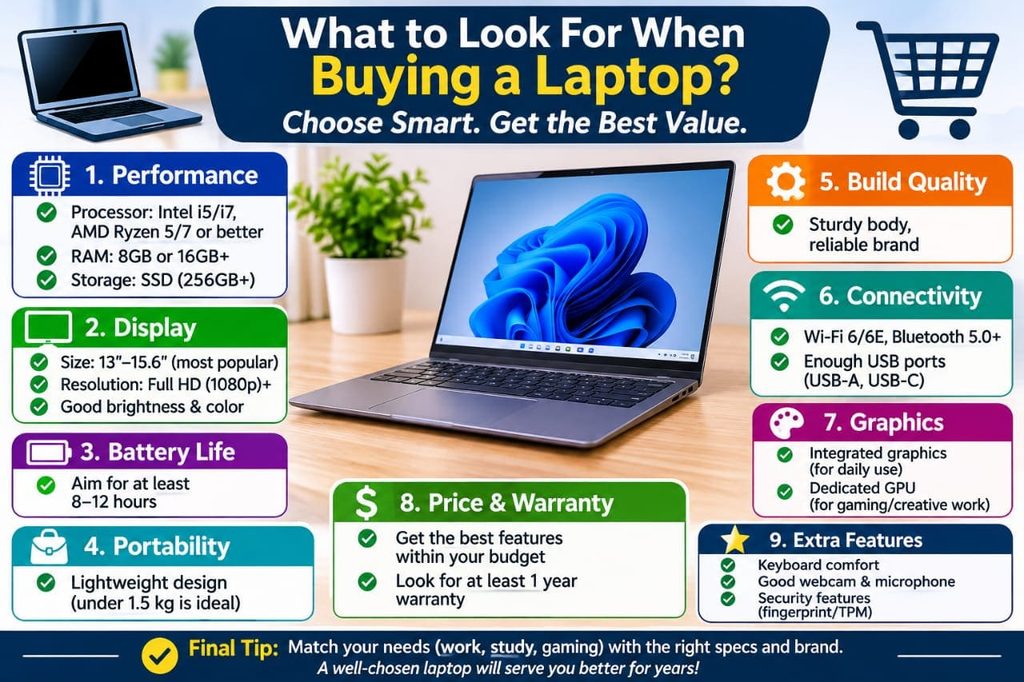
When deciding what to look for when buying a laptop, focus on your budget, processor, RAM, storage, display, battery life, and intended use. The best laptop is not necessarily the most expensive; it is the one that handles your daily tasks comfortably without making you pay for features you do not need.
Start by deciding what you will use the laptop for, then compare its core specifications, build quality, keyboard, ports, and warranty. This checklist explains the technical terms in plain English so you can compare laptops confidently, whether you need a computer for school, work, gaming, or everyday browsing.
Decide What You Need the Laptop For
Your intended use should guide every other buying decision. A laptop for checking email and browsing websites has different requirements from one used for video editing or modern PC games. Tips for Choosing the Right Laptop.
| Your main use | What to prioritize |
| Everyday browsing and streaming | 8–16GB RAM, SSD storage, comfortable display |
| School and college | 16GB RAM if affordable, good battery life, lightweight design |
| Office work and multitasking | 16GB RAM, a modern processor, a good keyboard |
| Programming and development | 16–32GB RAM, capable processor, sufficient SSD storage |
| Photo and video editing | 16–32GB RAM or more, strong CPU/GPU, color-accurate display |
| Gaming | Dedicated GPU, 16GB RAM or more, effective cooling, high-refresh-rate display |
| Travel and remote work | Low weight, reliable battery life, webcam, suitable ports |
These are general starting points, not strict requirements. The software you use, the size of your projects, and your budget can change what makes sense.
What laptop is best for me?
The best laptop for you is the one that meets your main needs without wasting your budget.
- For basic tasks: Choose an affordable laptop with a solid-state drive (SSD), a modern entry-level processor, and enough memory for everyday multitasking.
- For students: Look for a portable design, dependable battery life, a comfortable keyboard, and enough performance to keep several browser tabs and school applications open.
- For professionals: Prioritize performance, build quality, security features, and a screen suitable for long working sessions.
- For gamers: Compare graphics performance, cooling, screen refresh rate, and the power limits of the graphics hardware.
- For creative work: Check the processor, graphics capabilities, RAM, display quality, and storage capacity against your editing software’s requirements.
If you are unsure, a mainstream laptop with 16GB RAM, a modern midrange processor, and a 512GB SSD is a sensible starting point for many everyday users.
Choose the Right Processor
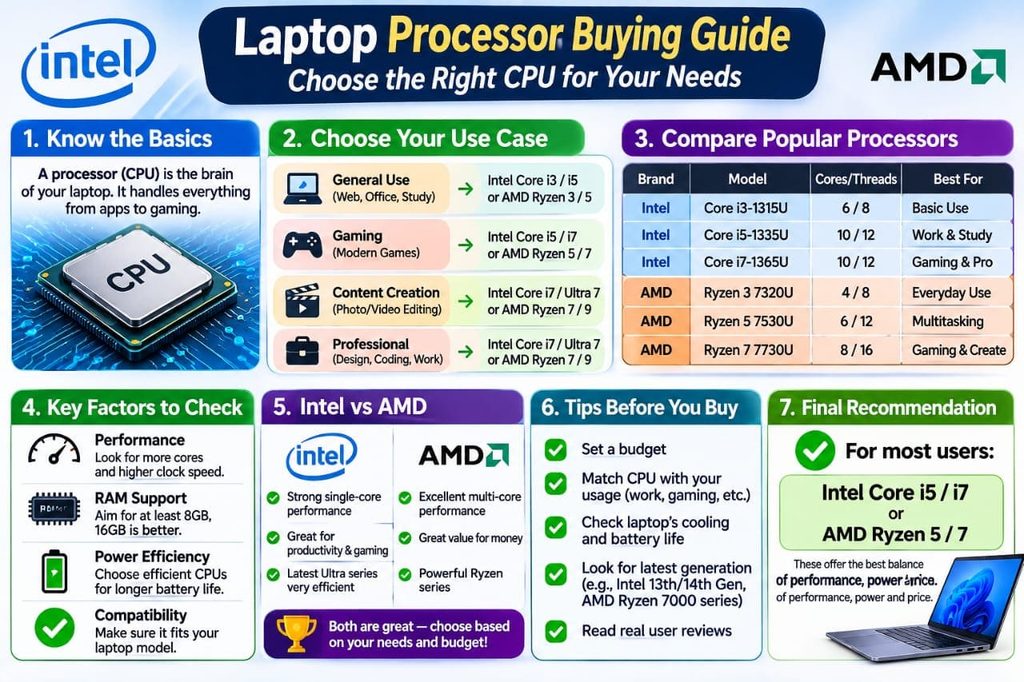
The processor, also called the CPU, is the main chip that executes instructions and helps determine how quickly your laptop handles tasks. It affects everyday responsiveness, demanding workloads, power consumption, and heat.Common laptop processor families include Intel Core and Core Ultra, AMD Ryzen, and Apple M-series chips. Their performance varies by model, generation, power rating, and laptop design, so do not judge a processor by its brand name alone
Which processor is best for a laptop?
There is no single best processor for every laptop. The right choice depends on your workload, budget, battery expectations, and the software you need to run.
| Usage | Processor guidance |
| Basic browsing and office work | A recent entry-level or mainstream processor |
| Heavy multitasking and business work | A modern midrange processor with strong sustained performance |
| Programming and demanding productivity | A higher-performance CPU, depending on development tools |
| Video editing and 3D work | A powerful CPU, often paired with capable graphics hardware |
| Gaming | A suitable modern CPU paired with a GPU that meets your games’ requirements |
What should you compare?
- Generation: Newer processors may improve performance and efficiency, but gains vary by model.
- Core count: More cores can help with workloads designed to run tasks in parallel.
- Performance benchmarks: Compare reviews of the exact processor and laptop model.
- Power and cooling: A thin laptop may not sustain the same performance as a larger laptop with better cooling.
- Platform compatibility: Check that your required applications, peripherals, and operating system are supported.
Do not buy a laptop just because its processor advertises a high clock speed or many cores. Real-world performance depends on the complete system.
Check How Much RAM You Need?
RAM, or random-access memory, temporarily holds the information your computer is actively using. More RAM can help you keep applications and browser tabs open without slowing down when your workload grows.For most new Windows laptops, 16GB RAM is a practical target. Eight gigabytes can work for lighter tasks, but it may feel restrictive when you multitask or use demanding applications.
| RAM capacity | Best suited for |
| 8GB | Basic browsing, email, documents, and light use |
| 16GB | Everyday multitasking, school, office work, and general productivity |
| 32GB | Heavy multitasking, development, creative applications, and some gaming workloads |
| 64GB or more | Specialized professional workloads, large projects, and virtual machines |
These are broad guidelines rather than universal minimums. Some applications need less, while others require substantially more.
Can you upgrade the RAM later?
Check the laptop’s specifications before purchasing. Some models have replaceable memory modules, while others use soldered RAM that cannot be upgraded.If the memory is not upgradeable, choose enough RAM for your expected needs over the laptop’s useful life. This matters especially if you plan to keep the computer for several years.
Choose an SSD With Enough Storage
Storage determines how much room you have for Windows or macOS, applications, documents, photos, videos, and games. An SSD is generally preferable to a traditional hard disk drive because it offers faster access to files and helps a laptop start and load applications more quickly. SSD vs HDD: SSD is better than an HDD for most computers because it loads Windows, opens applications, and launches games much faster.
For most buyers, capacity matters more than chasing small differences between similar SSDs.
| SSD capacity | Who should consider it? |
| 256GB | Light users who store most files online |
| 512GB | A good starting point for general use, school, and office work |
| 1TB | Users with large photo libraries, multiple games, or substantial work files |
| 2TB or more | Video editors, large game libraries, and people who keep extensive files locally |
Remember that the operating system and preinstalled applications use some of the advertised capacity. A nominal 512GB drive will not provide the full 512GB as free space.
NVMe versus SATA SSDs
NVMe SSDs use a fast storage interface commonly found in modern laptops. SATA SSDs use an older interface and are generally slower, although both can be suitable for everyday tasks.For a new laptop, an NVMe SSD is a good choice when available at a reasonable price. However, a larger SSD is often more useful than paying extra for a small speed improvement you may rarely notice.Also check whether the drive can be replaced or upgraded. Some laptops have limited or inaccessible internal storage, so expansion may require an external drive.
Look at the Display Before Buying
You will spend hours looking at the screen, so display quality deserves as much attention as processor speed. Check the screen size, resolution, brightness, color quality, and surface finish.
Which screen size is right?
- 13–14 inches: Best for portability, commuting, and working in different locations.
- 15–16 inches: A useful balance of screen space and portability for many users.
- 17 inches or larger: Better suited to desk-based work, gaming, and users who want a large display.
A larger screen is not automatically better. Consider the laptop’s weight, dimensions, and how often you will carry it.
Which display specifications matter?
| Feature | What to look for |
| Resolution | Full HD (1920 × 1080) or better for most general-purpose laptops |
| Panel type | IPS for good viewing angles; OLED for strong contrast and deep blacks |
| Brightness | Around 300 nits is a useful starting point for indoor use; brighter screens help in bright rooms |
| Refresh rate | 60Hz is adequate for office work; 120Hz or higher can make motion look smoother |
| Color accuracy | Important for photography, design, and video editing |
| Touchscreen | Useful if you want touch controls or a convertible laptop |
A higher resolution can make text and images sharper, but it may also increase power consumption. OLED displays can look excellent, although they may cost more and have different battery-life characteristics.If possible, inspect the display in person. Check whether text looks clear, colors appear natural, and reflections make the screen difficult to read.
Check Battery Life, Not Just the Advertised Number
Battery life matters if you work away from a power outlet, attend classes, or travel regularly. Manufacturers often advertise results from controlled tests, which may differ considerably from your actual use.A laptop advertised for 15 hours will not necessarily last that long when you use demanding applications, video calls, high screen brightness, or games.Before buying, check independent reviews that measure battery life under realistic conditions. Look for results from web browsing, video playback, or productivity tests that resemble your typical day.
Also consider these details:
- Battery capacity: Larger batteries can help, but efficiency and screen size also affect runtime.
- USB-C charging: Check whether the laptop supports charging through USB-C and what wattage it requires.
- Charging speed: Useful if you frequently need a quick recharge between meetings or classes.
- Battery replacement: Find out whether replacement is practical and whether service is available in your area.
For frequent travel, prioritize a laptop with strong real-world battery performance and a weight you can comfortably carry.
Compare Windows, macOS, and ChromeOS
The operating system determines how you interact with the laptop and which applications you can run. Choose one that fits your existing workflow rather than assuming one platform is best for everyone.Windows laptops offer a wide range of prices, hardware configurations, and designs. They are a practical choice for general productivity, many business applications, PC gaming, and software that specifically requires Windows.
macOS
MacBooks run Apple’s macOS and use Apple silicon in current-generation models. They are worth considering if you prefer Apple’s ecosystem, use Mac-specific software, or want to work across a Mac, iPhone, and other Apple devices.
ChromeOS
Chromebooks are built around Google’s ChromeOS and work particularly well for web-based tasks, schoolwork, and cloud applications. Before buying one, confirm that it supports the desktop software, offline tasks, and peripherals you need.
Check software compatibility first. If your school, employer, or professional workflow requires a particular application, verify that it runs on your chosen operating system before paying for the laptop.
Do Not Overlook Graphics Performance
A graphics processing unit (GPU) handles images, video output, and graphics-intensive work. Some laptops use integrated graphics built into the processor, while others include a separate, dedicated GPU.Integrated graphics are sufficient for everyday browsing, video streaming, office applications, and many light creative tasks. A dedicated GPU is generally more appropriate for demanding games, 3D rendering, and certain video-editing workflows.
Before buying a laptop for gaming or creative work, check the following:
- The exact GPU model and its performance in independent reviews.
- The amount of graphics memory, known as VRAM.
- The cooling system and sustained performance under load.
- The games or applications you plan to run.
- The screen resolution and refresh rate you want to use.
Two laptops with the same GPU name can perform differently because of power limits and cooling. Compare complete laptop reviews rather than relying on the graphics chip’s name alone.If you only need a laptop for documents, browsing, video calls, and streaming, spending extra on a powerful dedicated GPU may not be worthwhile.
Test the Keyboard, Touchpad, Webcam, and Microphone
Specifications do not tell you everything about daily comfort. A laptop with excellent performance can still be frustrating if the keyboard feels cramped, the touchpad responds poorly, or the webcam produces unclear video.
If you can inspect the laptop in person, check these features before purchasing.
- Keyboard: Look for comfortable key spacing, reliable feedback, and a layout that suits your typing habits.
- Touchpad: Make sure the surface feels smooth and gestures work reliably.
- Webcam: Check the resolution and image quality, especially if you attend frequent video meetings.
- Microphone: Look for clear voice pickup and effective background-noise handling.
- Speakers: Listen for understandable speech and acceptable sound quality.
- Privacy features: Consider a physical webcam shutter or dedicated microphone controls if these matter to you.
A fingerprint reader or facial-recognition camera can also make sign-in more convenient, provided the laptop supports the relevant operating-system feature.For remote work and online classes, a good webcam, microphone, and keyboard may improve your daily experience more than a small increase in processor performance.
Check Ports, Wireless Connectivity, and Upgrade Options
Ports determine which accessories you can connect without carrying adapters. Review the laptop’s physical connections against the devices you already own.
| Port or feature | Why it matters |
| USB-A | Connects many older flash drives, mice, and accessories |
| USB-C | Supports compatible accessories and may support charging or video output |
| Thunderbolt | Offers high-speed connections and docking options on supported systems |
| HDMI | Connects to many external monitors, TVs, and projectors |
| 3.5mm audio jack | Connects compatible wired headphones and headsets |
| SD or microSD reader | Useful for photographers and other creators |
| Wi-Fi | Provides wireless network access; supported standards vary by model |
| Bluetooth | Connects compatible wireless headphones, mice, keyboards, and other devices |
Do not assume every USB-C port supports charging, external displays, or Thunderbolt. Check the manufacturer’s specifications for the exact laptop model.Also confirm whether the laptop supports the wireless standards you need, including the Wi-Fi and Bluetooth versions relevant to your home or workplace.
Can you upgrade the laptop later?
Upgrade options can extend a laptop’s useful life, but they vary widely between models. Check whether the RAM, SSD, battery, and wireless card are replaceable or serviceable.If you want to use the laptop with an external monitor, consider whether it supports your desired display resolution and refresh rate. A compatible docking station can expand connectivity, but it may add to the total cost.
Consider Build Quality, Weight, and Cooling
A laptop is something you may carry and use every day. Its construction, hinge strength, portability, and ability to manage heat all affect long-term satisfaction.Look for a sturdy chassis, a screen that opens smoothly, and hinges that hold the display in place. Materials alone do not guarantee durability, so independent reviews and hands-on inspection are useful.
Weight matters most if you carry the laptop regularly. Remember to include the charger in your estimate, because a heavy power adapter can make a portable laptop less convenient.Cooling is especially important for gaming, video editing, and other demanding workloads. Read reviews that discuss fan noise, surface temperatures, and whether performance drops during extended tasks.
Set a Realistic Budget and Check the Warranty
Your budget should cover the complete setup, not just the laptop’s advertised price. Depending on your needs, you may also need a mouse, a USB-C hub, external storage, software, or a protective case.When comparing prices, compare similar configurations. One laptop may have 8GB RAM and a 256GB SSD, while another has 16GB RAM and a 512GB SSD despite looking almost identical.
Before ordering, review the following:
- Warranty: Check the coverage period, exclusions, and repair process.
- Return policy: Confirm how long you have to return the laptop and whether restocking fees apply.
- Support availability: Check whether service is available where you live.
- Operating-system license: Verify that the advertised configuration includes the operating system you need.
- Included accessories: Check whether the charger and other essential items are included.
- Total price: Account for taxes, delivery, accessories, and any required upgrades.
If you are buying from a retailer or marketplace, verify the seller’s reputation and the laptop’s exact model number. A low price is less attractive if the warranty is unclear or the device has specifications different from those advertised.
Use This Laptop Buying Checklist Before You Pay
Use this checklist when comparing two or more laptops. It helps you catch limitations that may not be obvious from the product listing.
Pre-purchase checklist
- The laptop fits my budget, including necessary accessories.
- The processor meets my workload and software requirements.
- The RAM is sufficient, with upgrade options checked.
- The SSD has enough capacity for my files and applications.
- The display is comfortable for my daily work.
- The battery life matches my travel or work needs.
- The operating system supports my required applications.
- The graphics hardware meets my gaming or creative needs.
- The keyboard, touchpad, webcam, and speakers are suitable.
- The ports and wireless connections meet my needs.
- The weight, cooling, and build quality suit my routine.
- The warranty, return policy, seller, and exact model are verified.
Reset checklistCopy checklist
You do not need the highest specification in every category. Focus on the features that matter to your workload, and avoid paying for upgrades you will rarely use.
Frequently Asked Questions
What laptop is best for me?
The best laptop depends on your budget, applications, and portability needs. For many everyday users, a laptop with 16GB RAM, a modern processor, a 512GB SSD, and a good-quality display offers a useful balance.
Which processor is best for a laptop?
There is no universal winner because processor performance depends on the specific model, generation, power limits, and cooling. Compare recent Intel Core, Intel Core Ultra, AMD Ryzen, and Apple M-series processors in laptops designed for your workload.
Is 8GB RAM enough for a laptop?
Eight gigabytes can handle basic browsing, email, documents, and light tasks. However, 16GB is a better starting point for many new Windows laptops if you regularly multitask or want more room for future applications.
Is a 256GB SSD enough for a laptop?
A 256GB SSD may be enough if you mainly browse the web, use cloud storage, and keep few large files locally. Choose 512GB or more if you install many applications, store photos and videos, or download large games.
Should I buy a laptop with an SSD or HDD?
An SSD is the better choice for most modern laptops because it offers faster file access and generally improves startup and application-loading times. A traditional hard drive may provide inexpensive bulk storage, but it is uncommon in thin, lightweight laptops.
Final Thoughts
When deciding what to look for when buying a laptop, prioritize the right processor, enough RAM, an SSD with suitable capacity, a comfortable display, and reliable battery life. Match those essentials to your budget, then verify ports, upgrade options, warranty coverage, and software compatibility before purchasing.Before making your final decision, compare independent reviews of your shortlisted models and check their exact configurations against this checklist.